Why Can’t I Uninstall Valorant? The Ultimate Fix For Your PC
Gamers frequently run into a massive roadblock when trying to clear up drive space. You hit the delete button, wait for the progress bar, and nothing happens. Frustrating, right? Honestly, it gets highly annoying when a simple software removal turns into a tech nightmare. Many players find themselves staring at their screens, completely confused. Why can’t I uninstall Valorant – the common guide explains this error and possible solutions.
The thing is, modern gaming software operates differently from older applications. Back in the day, removing a game like Zoo Tycoon 2 was incredibly simple. You clicked a button, and the files vanished. Today, titles require heavy security measures. This extra security often locks files tightly to your operating system. Check this out. When software runs deep inside your computer hardware, standard deletion methods just fail.
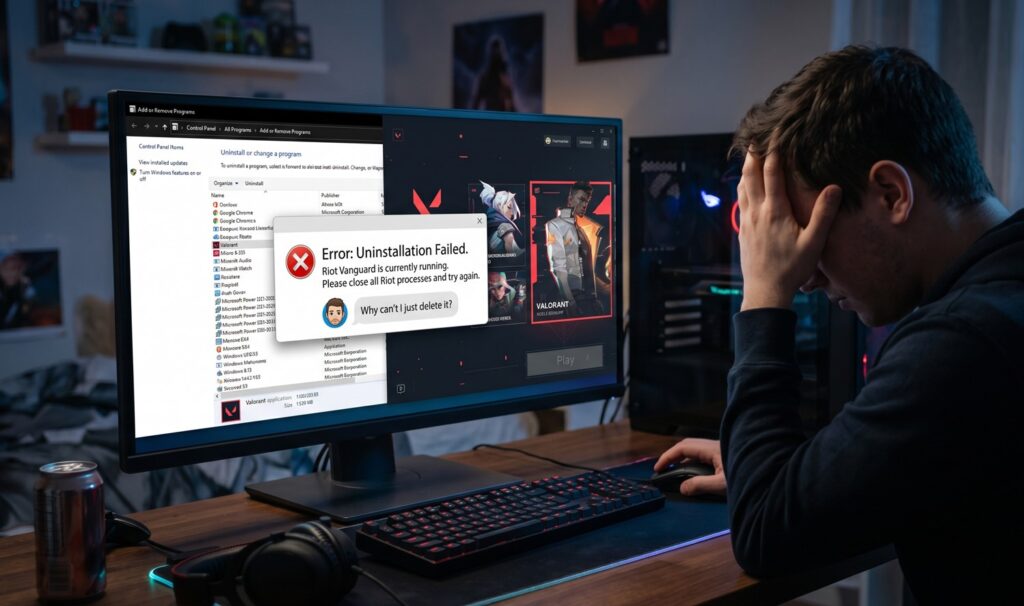
This might help you understand the core problem. The game relies on a very specific anti-cheat program. This program boots up the second your computer turns on. Because it constantly runs in the background, your operating system believes the files are actively open. Windows absolutely refuses to delete active files. So here’s what happened. You tried to remove the main application, but the security background process blocked the entire action.
Here’s why it matters so much. Leaving corrupted or blocked files on your drive eats up valuable gigabytes. You need that space for fresh releases. To regain control of your hard drive, you must tackle the security software first.
The Hidden Kernel Reason – Why Can’t I Uninstall Valorant Today
To grasp the full picture, you must understand kernel-level access. Most standard applications operate at a surface level. They only access what they need. However, certain security systems dig much deeper. They operate at “Ring 0” – the absolute core of your operating system.
Riot Vanguard is the security shield for this specific shooter. It boasts kernel-level privileges. This means Vanguard has higher authority than almost anything else on your machine. When you attempt to remove the base game, Vanguard steps in to protect the files. It assumes a malicious virus is trying to modify the game folder. Therefore, it completely halts the deletion process.
This could work for you if you understand the priority order. You absolutely cannot remove the game while Vanguard remains active. The system tray constantly hides this silent protector. You have to shut off the shield before attacking the main problem.
Common Error Codes During Deletion
| Error Message | What It Actually Means | The Quickest Solution |
| “Action cannot be completed because the file is open” | Vanguard is actively running in the background. | Close the application via the system tray or Task Manager. |
| “You do not have sufficient access to uninstall” | Windows lacks the administrative rights to bypass the anti-cheat. | Run the removal tool as an Administrator. |
| “Uninstall failed. File not found.” | Previous attempts corrupted the directory structure. | Reinstall the application fully, then properly remove it. |
Here is a quick checklist of things to do before attempting another removal.
- Close the Riot Client completely: Ensure nothing remains open on your taskbar.
- Sign out of your account: Sometimes active sessions lock local files.
- Restart your computer: A fresh boot clears the temporary memory cache.
The System Tray Method: Taking Down Vanguard First
Here’s how it works. You must target the anti-cheat software before touching the actual game files. Look at the bottom right corner of your screen. You will see a small arrow pointing upward. Click that arrow to open the System Tray.
Locate the small red icon. Right-click that specific icon. A tiny menu will pop up on your screen. Select the option that says Exit Vanguard. A warning box will appear, asking if you are completely sure. Confirm the action.
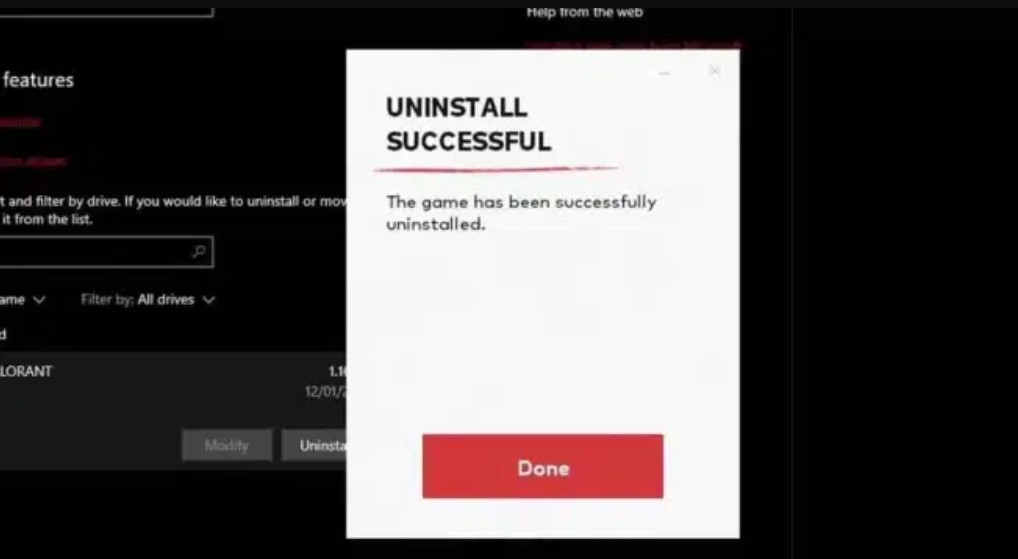
Now, the shield is officially down. Press the Windows Key and type “Add or remove programs”. Hit enter to open your system settings. Scroll through your massive list of software until you find Vanguard. Click on it, then hit Uninstall. Windows will ask for permission. Click yes.
Once Vanguard disappears from the list, scroll slightly further. Find the main game application. Click Uninstall on that one too. Without the kernel-level protector standing in the way, the files should finally be deleted properly. But there’s a catch. Sometimes, the background process refuses to close through the system tray.
Comparing Anti-Cheat Systems: A Natural Digression
Let’s look at how other popular titles handle security. You know what? The gaming industry handles cheating in wildly different ways. Take a massive release like Call of Duty: Black Ops 7. That title relies on the Ricochet anti-cheat system. Ricochet also utilizes kernel-level drivers. However, it generally uninstalls automatically when you remove the main game. It rarely leaves stubborn background processes running indefinitely.
On the complete opposite side of the spectrum, consider a relaxing adventure like Stardew Valley. Single-player or lightweight multiplayer titles do not require aggressive background monitoring. Removing them takes exactly three seconds. No hidden files, no blocked actions.
Then you have massive open-world titles like Genshin Impact. They employ strong security, but it rarely locks your entire operating system down. The aggressive nature of competitive tactical shooters demands extreme measures. Players demand fair matches. Developers respond with incredibly strict software. This strictness causes the very removal issues we are discussing right now.
How Different Security Tools Behave
| Game Title | Security Software | Removal Difficulty | Background Activity |
| Competitive Tactical Shooters | Riot Vanguard | Extremely High | Always running on system boot. |
| Call of Duty: Black Ops 7 | Ricochet | Moderate | Runs only when the game opens. |
| Genshin Impact | mhyprot2 | Low | Closes easily upon game exit. |
Another Method When Asking Why Can’t I Uninstall Valorant Successfully
- Sometimes the standard graphical interface fails completely. The system tray method might glitch out. When that happens, you need to bring in heavy artillery. You need to operate the Command Prompt.
- Press the Windows Key and type “cmd”. Do not just press enter. You must right-click the Command Prompt app and select Run as Administrator. This grants you absolute control over your machine.
- A black box with white text will appear. This looks intimidating, but it remains incredibly safe if you type exactly what is required. Type the following command exactly: sc delete vgc. Press enter. You should see a success message.
- Next, type another command: sc delete vgk. Press enter again. Another success message will appear. These two commands forcefully destroy the background services keeping the anti-cheat alive.
However, the files still exist on your hard drive. Restart your computer immediately. This reboot is absolutely critical. Without the restart, Windows still thinks the services are partially active.
After the PC boots back up, navigate to your C: Drive. Open the folder named Program Files. Find the folder labeled Riot Vanguard. Right-click that folder and hit delete. It will vanish into the recycle bin without any arguments. Now, go back to your system settings and remove the main game application.
Here is a secondary list of steps for the Command Prompt method just to keep things incredibly clear.
- Open Command Prompt strictly as an Administrator.
- Execute the delete commands for vgc and vgk.
- Restart your computer completely before attempting any file deletion.
- Manually delete the actual folder from the C: Drive.
The Safe Mode Strategy For Stubborn Files
If you find yourself still asking why can’t I uninstall Valorant, there is one final, guaranteed software method. Booting your computer into Safe Mode:
- Safe Mode strips Windows down to its bare essentials. It stops all third-party applications from loading during startup. This includes incredibly stubborn kernel-level anti-cheats. Because the security software never turns on, it cannot block your actions.
- Press the Windows Key and the letter R simultaneously. A small run box will appear. Type “msconfig” and press enter. The System Configuration window will pop up.
- Click on the Boot tab located at the top. Look at the lower section for Boot options. Check the box that says Safe boot. Keep it on the minimal setting. Click apply, then click OK. Windows will prompt you to restart your computer.
- When your PC turns back on, things will look weird. The resolution might be low. The screen might look stretched. Do not panic. This is completely normal for Safe Mode.
- Navigate straight to your system settings. Go to the programs list. Click on the game and hit delete. Do the same for the anti-cheat. Because they are completely dormant, Windows will wipe them instantly.
- Once you finish, you must turn Safe Mode off. Open the run box again. Type “msconfig” again. Go back to the Boot tab. Uncheck the Safe boot box. Click apply, OK, and restart your computer one last time. Your PC will boot normally, and the stubborn software will be gone entirely.
Cleaning Up Residual Folders And Junk Files
You might think the job is finished. Honestly, software loves to leave trash behind. Even after a successful removal, hidden directories store leftover data. These leftover files take up space and can cause conflicts if you ever decide to reinstall the game later:
- You need to hunt down these residual files. Press the Windows Key and R to open the run box. Type %localappdata% and hit enter. A massive folder filled with system files will open.
- Scroll down until you find a folder named Riot Games. Open it. If you see folders specifically related to the shooter you just removed, delete them. Be careful not to delete files for other games from the same developer if you still play them.
- Next, go back to the run box. Type %appdata% and press enter. Check for any leftover folders here as well. Finally, check your main document folder. Sometimes games save configuration settings directly in your personal documents.
Here are the specific locations you should check for leftover junk files.
- C:\Users[Your Name]\AppData\Local\Riot Games.
- C:\Users[Your Name]\AppData\Roaming
- C:\ProgramData\Riot Games.
Nuke those specific folders to ensure a completely clean slate.
Why You Should Avoid Registry Cleaners?
Many players get desperate. They download random third-party registry cleaners to forcefully remove games. Please, reconsider this approach.
The Windows Registry acts as the brain for your operating system. It catalogs every single piece of hardware and software. Modifying the registry manually or allowing an automated tool to scan it carries immense risk. One wrong deletion can literally brick your computer. You might fix the game removal issue but destroy your audio drivers in the process.
Stick to the Command Prompt or Safe Mode methods. They rely on built-in Windows tools. They remain incredibly safe. If you absolutely must rely on a third-party application, stick to highly reputable uninstallers that simply scan for leftover file directories rather than tearing apart your registry keys.
Final Thoughts On Game Management
Managing storage space often feels like a constant battle. Massive updates arrive every single week. When you decide to move on from a specific title, the removal process should remain painless.
Understanding how kernel-level security operates gives you a massive advantage. You now know exactly how to bypass the restrictions. You know to target the background shield before attacking the main application. You possess the Command Prompt knowledge to force compliance.
Keep your system clean. Delete leftover junk data. Ensure your background processes remain organized. By following these straightforward strategies, you will never struggle with stubborn software again.
FAQ
Can I disable Vanguard without uninstalling it?
Yes. You can exit the program through the system tray, but it will turn back on the next time you restart your computer.
Why does the game require such invasive software?
Competitive tactical shooters demand extreme fairness. Kernel-level access stops sophisticated cheats from manipulating the game code invisibly.
Will removing the anti-cheat ban my account?
No. Removing the software simply prevents you from launching the game. Your actual account and purchased items remain completely safe on the developer servers.
Do other games install similar background programs?
Yes. Many modern multiplayer titles employ aggressive security measures that operate at the core operating system level.
What happens if I just delete the desktop shortcut?
Deleting a shortcut merely removes the visual icon. The massive game files and the background security software remain fully installed on your hard drive.
Can Safe Mode damage my computer?
No. Safe Mode is a built-in diagnostic tool designed specifically by Microsoft to safely troubleshoot and fix stubborn system errors.
Why is the uninstall button greyed out in settings?
A greyed-out button usually means the software is currently running an active process. You must close all related background tasks through the Task Manager first.
The Conclusion To Your Storage Nightmares
Taking back control of your hard drive feels fantastic. No software should permanently lock itself onto your machine. Armed with the knowledge of system trays, Command Prompts, and Safe Mode, you hold all the power. Keep gaming, keep managing your space smartly, and never let stubborn files ruin your day again.
Show some support for our team by saving this content to your bookmarks and sharing the post across your social media feeds. If you have an exciting project in mind, just drop a message directly to the YaninaGames team to chat about a creative or commercial collaboration. We are always open to exploring new opportunities – so let’s build something interesting together.