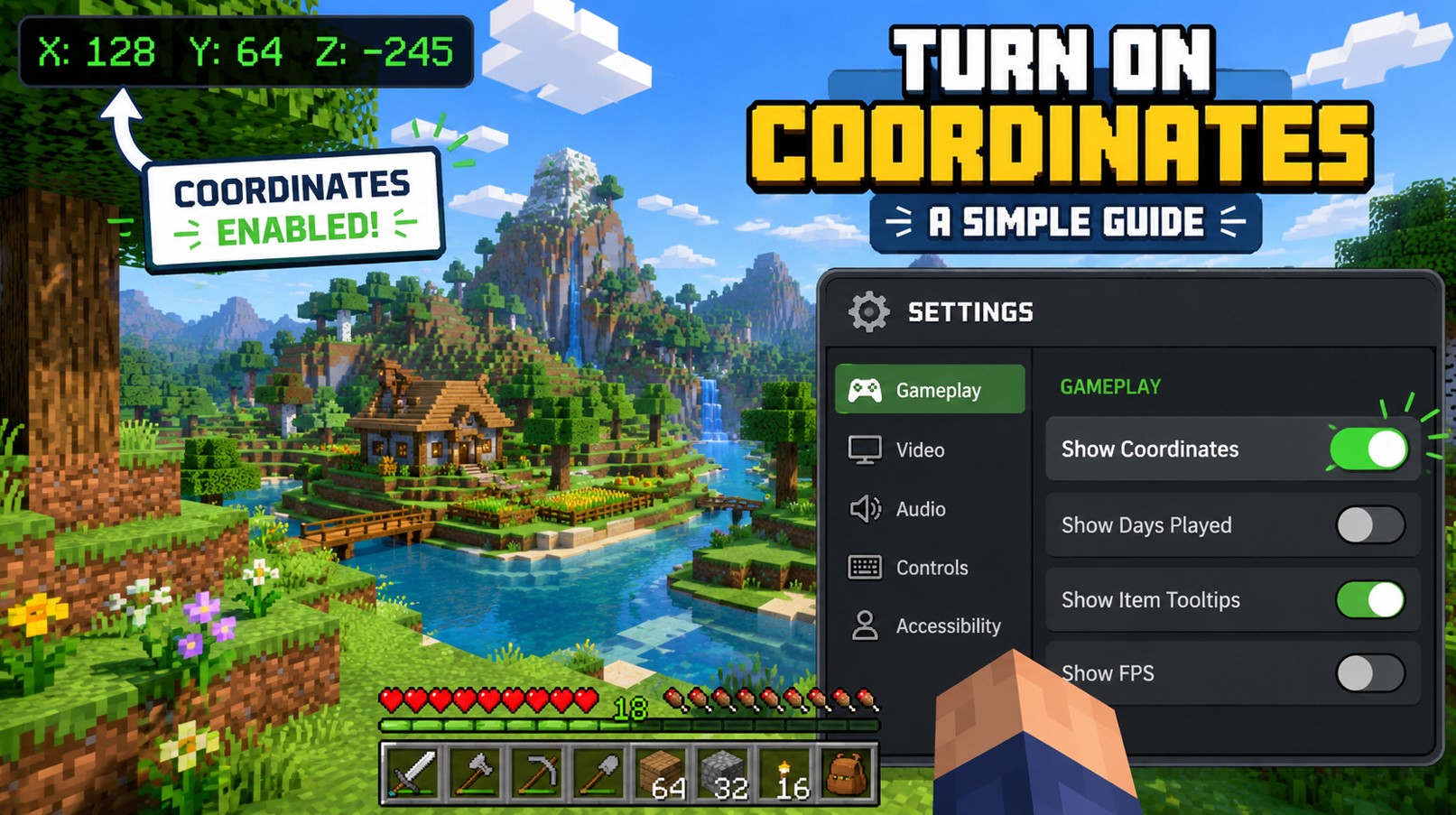
How to Turn On Coordinates in Minecraft, No Matter Your Device
We’ve all been there. You wander a little too far from base chasing a herd of sheep, the sun sets, a creeper hisses somewhere behind you, and suddenly you have no earthly idea which way is home. Panic sets in. You start digging random tunnels and hoping. Sound familiar? Coordinates fix all of that. They’re three little numbers that tell you exactly where you are, and once they’re on your screen, getting hopelessly lost becomes a thing of the past. The tricky part is that turning them on works differently depending on how you play. So let’s sort it out, platform by platform, so you never have to panic-dig again.
Here’s the big thing to understand up front: Minecraft comes in two main flavors, and they handle coordinates in completely different ways. Java Edition (the PC and Mac original) has a debug screen you pop open with a key. Bedrock Edition (mobile, console, and the Windows 10/11 version) hides the option in a settings menu instead.
Figuring out which edition you’re on is step one. If you bought the game through the Microsoft Store, an app store, or you’re on a console, you’re on Bedrock. If you launch it through the standalone Java launcher on a computer, you’re on Java. Got it? Good. Now let’s walk through each path.
First, What Are X, Y, and Z Anyway?
Before we flip any switches, a quick primer, because the numbers are useless if you can’t read them. Minecraft runs on a three-axis system, and each letter tells you something specific:
- X marks east and west – positive numbers go east, negative go west.
- Z marks north and south – positive goes south, negative goes north.
- Y is your height – sea level sits around Y 63, the bottom of the world is Y -64, and the build ceiling is Y 320.
So a spot reading X 150, Y 72, Z -340 means you’re 150 blocks east and 340 blocks north of the world’s center, sitting a little above sea level. Easy enough once it clicks.
And here’s a bonus: the numbers pair nicely with a few natural landmarks if you ever get turned around. A couple of old-school tricks worth keeping in your back pocket:
- The sun rises in the east, which is the positive X direction.
- Clouds always drift east, so they’re a rough compass too.
- The “L” shape on top of a cobblestone block points southeast.
One neat fact – the X, Y, Z grid is identical between Java and Bedrock. Same seed, same coordinates, same spot. That consistency makes sharing locations with friends across setups painless.
Turn On Coordinates in Minecraft Java Edition
If you’re on PC or Mac, this is the quick one. Java doesn’t bury the option in a menu at all. Just tap the F3 key on your keyboard, and a wall of debug text springs up. Look at the top-left corner for the line labeled XYZ – those are your live coordinates, updating as you walk.
On a Mac, you might need Fn + F3 instead, and on some newer Macs it’s Alt + Fn + F3. Laptop keyboards can be fussy about function keys in general, so if a plain F3 does nothing, that Fn combo is your fix.
A couple of handy extras while you’re in there. Pressing F3 + C copies your current coordinates straight to your clipboard, perfect for pasting into a chat or a notes app. And if all that debug clutter bugs you, F3 + F6 opens a menu where you can trim the overlay down to just the bits you care about. To make the whole screen vanish again, tap F3 once more. Clean and simple.
Worth noting: Java coordinates are available by default. There’s no world setting to toggle, though a server admin can technically dial back debug info with a gamerule. If your F3 screen looks stripped down on someone else’s server, that’s likely why.
Turn On Coordinates in Minecraft Bedrock Edition
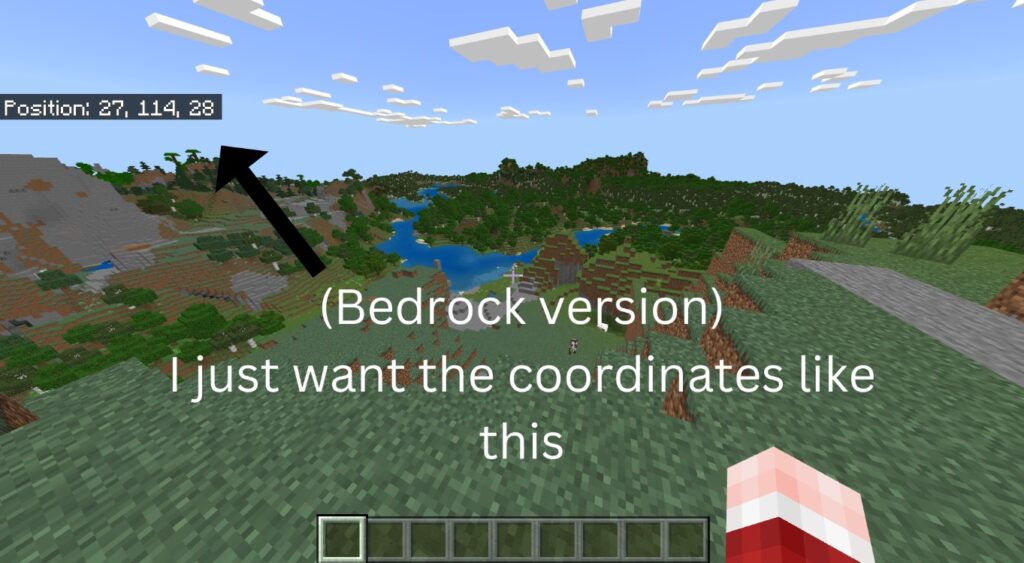
Bedrock’s a different beast. There’s no F3 debug screen here, and coordinates are switched off by default, so you’ll have to flip them on yourself. The good news is it’s a permanent, always-visible toggle once you set it.
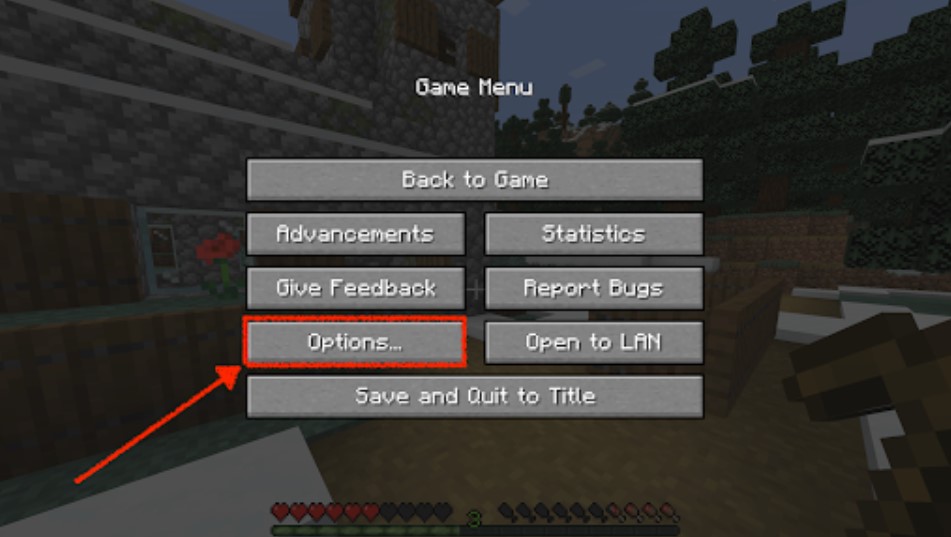
Here’s the path for a single-player world or one you’re hosting: pause the game, open Settings, scroll to the Game section, and find the Show Coordinates toggle. Switch it on. Your X, Y, and Z will now sit quietly in the top-left corner, sticking around no matter what you’re doing.
You can also set this when creating a brand-new world, right there in the world options. Forgot to do it at the start? No problem. Back out to the main menu, hit the pencil or Edit icon next to your world, and flip Show Coordinates there instead.
Because Bedrock spans so many devices, here’s a clean breakdown of where to head on each:
| Platform | How to turn coordinates on |
|---|---|
| Mobile (iOS/Android) | Pause, Settings, Game, Show Coordinates |
| Nintendo Switch | Pause, Settings, Game, Show Coordinates |
| Xbox | Pause, Settings, Game, Show Coordinates |
| PlayStation | Pause, Settings, Game, Show Coordinates |
| Windows 10/11 | Pause, Settings, Game, Show Coordinates |
Notice a pattern? Every Bedrock platform lands in the same spot: Settings, then Game, then the Show Coordinates toggle. Mojang kept it consistent, which is a small mercy when you’re helping a friend over voice chat who’s on a different console than you.
Coordinates on Servers and Realms
Multiplayer’s where things get a touch more involved, because now permissions matter. On a Bedrock multiplayer server, one person with the right access can turn coordinates on for everybody at once.
The magic line is the showcoordinates gamerule. An admin opens the server console and enters /gamerule showcoordinates true. Cheats need to be enabled for this to work. Once it’s live, every single player sees their position automatically – no one has to fiddle with their own settings. To switch it back off, the same admin runs /gamerule showcoordinates false. Quick heads-up: this gamerule is a Bedrock-only thing. Java has no direct equivalent, since Java players just press F3 on their own.
Realms follow a similar logic. If you’re playing on a Bedrock Realm and the Show Coordinates toggle looks greyed out or won’t budge, that’s because the Realm owner controls it. Politely ask them to switch it on in the Realm’s game settings, and you’ll be sorted. It’s their call, not yours, unless you own the Realm.
The Handy /tp Trick When Nothing Else Works
Every now and then you’re stuck somewhere the normal toggle is off, and you can’t change it – a friend’s world, maybe, or a locked-down server. There’s a sneaky workaround that spits out your coordinates on demand.
Open the chat window and type /tp ~ ~ ~ then hit Enter. Those three tildes mean “my current position,” so the game teleports you to exactly where you already are – going nowhere – and prints your coordinates right in the chat log. It’s a clever little party trick.
The catch is that it needs cheats or command permissions enabled, so it won’t save you on a strict server. On console, you’ll open chat with the right button on your D-pad first. Handy to remember when the standard route is blocked.
Bonus: Copy Coordinates Straight to Your Clipboard
Bedrock has one more trick that power builders adore, tucked away in the Creator settings. Head to Settings, then Creator, and switch on Enable Copy Coordinate UI. This adds a slick way to grab positions without squinting and typing them by hand.
With it on, Ctrl + Alt + C copies wherever you’re standing, and Ctrl + Alt + X copies the block your crosshair is pointing at. The game flashes a little “copied to clipboard” confirmation so you know it worked. On a controller or touchscreen, open the chat menu, pick Local or Cursor from the dropdown at the top, and tap the copy button. Great for pasting exact build spots into a group chat.
Reading and Actually Using Your Coordinates
Turning them on is half the battle. Reading them well is what actually gets you home. The idea is simple: note your base’s numbers, then wander freely. To return, just steer yourself so your X and Z values creep back toward those saved figures. When both match, you’re standing on your doorstep. The Y value matters less for surface travel but becomes gold when you’re mining.
Speaking of which, coordinates quietly power a ton of everyday Minecraft tasks:
- Marking your base so you can always find your way back.
- Lining up Nether portals so they link to the right Overworld spot.
- Hunting diamonds efficiently by dropping down to the sweet-spot low Y-levels, around Y -59.
- Logging a death location so you can sprint back for your dropped gear.
- Sharing an exact biome, village, or ore vein with a friend.
That last one is the real social glue. Instead of vaguely describing “the swamp near the big mountain,” you just fire off three numbers, and your buddy shows up on the dot. Way less arguing, way more building.
When Coordinates Won’t Show Up
Sometimes you flip the switch and… nothing. Frustrating, but almost always fixable. Most hiccups trace back to a handful of common causes.
| Problem | Likely fix |
|---|---|
| F3 does nothing (Java) | Try Fn + F3; a key utility may be blocking it |
| Toggle is greyed out | You’re on a Realm or server; ask the owner |
| Enabled but nothing shows | Confirm it’s on for that specific world |
| Numbers cut off on a TV | Adjust overscan or interface scaling |
| Command fails | Cheats or operator permissions aren’t active |
A couple of these trip people up constantly. On Bedrock, the Show Coordinates setting is per-world in some spots, so switching it on in one save doesn’t carry to another – double-check the actual world you loaded. And on a big living-room TV, the top-left corner can genuinely get swallowed by overscan, so the coordinates are technically on but hiding off the edge of your screen. A quick display tweak brings them back.
One more thing folks confuse: a map or a compass won’t give you the neat X, Y, Z readout. A compass only points toward world spawn or a lodestone, and a map shows terrain, not your exact numbers. For the precise readout, the Show Coordinates toggle or the F3 screen is the only real answer.
FAQ
Are coordinates on by default in Minecraft?
In Java Edition, yes – just press F3. In Bedrock Edition, they’re off by default, so you’ll need to switch on Show Coordinates in the Game settings.
How do I show coordinates on Nintendo Switch?
Pause the game, open Settings, scroll to Game, and toggle Show Coordinates on. Switch runs Bedrock, so there’s no F3 key.
Does turning on coordinates disable achievements?
The Show Coordinates world setting is achievement-safe. Enabling cheats to run a command like the gamerule, however, will switch achievements off, so favor the toggle when you can.
What do X, Y, and Z mean?
X is east and west, Z is north and south, and Y is your height. Sea level sits around Y 63, and the world bottoms out at Y -64.
How do I see coordinates on a server?
An admin enters /gamerule showcoordinates true in the console with cheats on. That turns the display on for every player at once.
Why can’t I turn coordinates on?
You’re likely on a Realm or server where the owner controls the setting. Ask them to enable it, since it’s out of your hands unless you host it.
Are Java and Bedrock coordinates the same?
Yes. The X, Y, Z system is identical across both editions, so the same numbers point to the same place in a world with the same seed.
Wrapping Up
And that’s the whole map, so to speak. Whether you’re tapping F3 on a PC, flipping a toggle on your Switch, or running a gamerule for your whole server crew, getting those three numbers on screen takes seconds. Once they’re there, you’ll wonder how you ever played without them – no more panic-digging, no more losing your diamond stash to the void of a forgotten cave.
Turn them on, jot down your base numbers, and go explore with confidence. Albion’s countryside has nothing on a well-mapped Minecraft world, and now you’ve got the tools to never lose your way again. Happy building.
P.S. If this walkthrough got your coordinates glowing in the corner and saved your bacon before nightfall, do the BandurArt team a solid – pass it along to whichever fellow crafters keep getting lost, and bookmark it so it’s one tap away next time you spin up a new world. Every share genuinely keeps our little crew mining forward, and it costs you nothing but a click. And if creative or commercial collaboration is what you’re chasing, our door’s always unlocked – write to YaninaGames directly, and let’s build something worth mapping together.