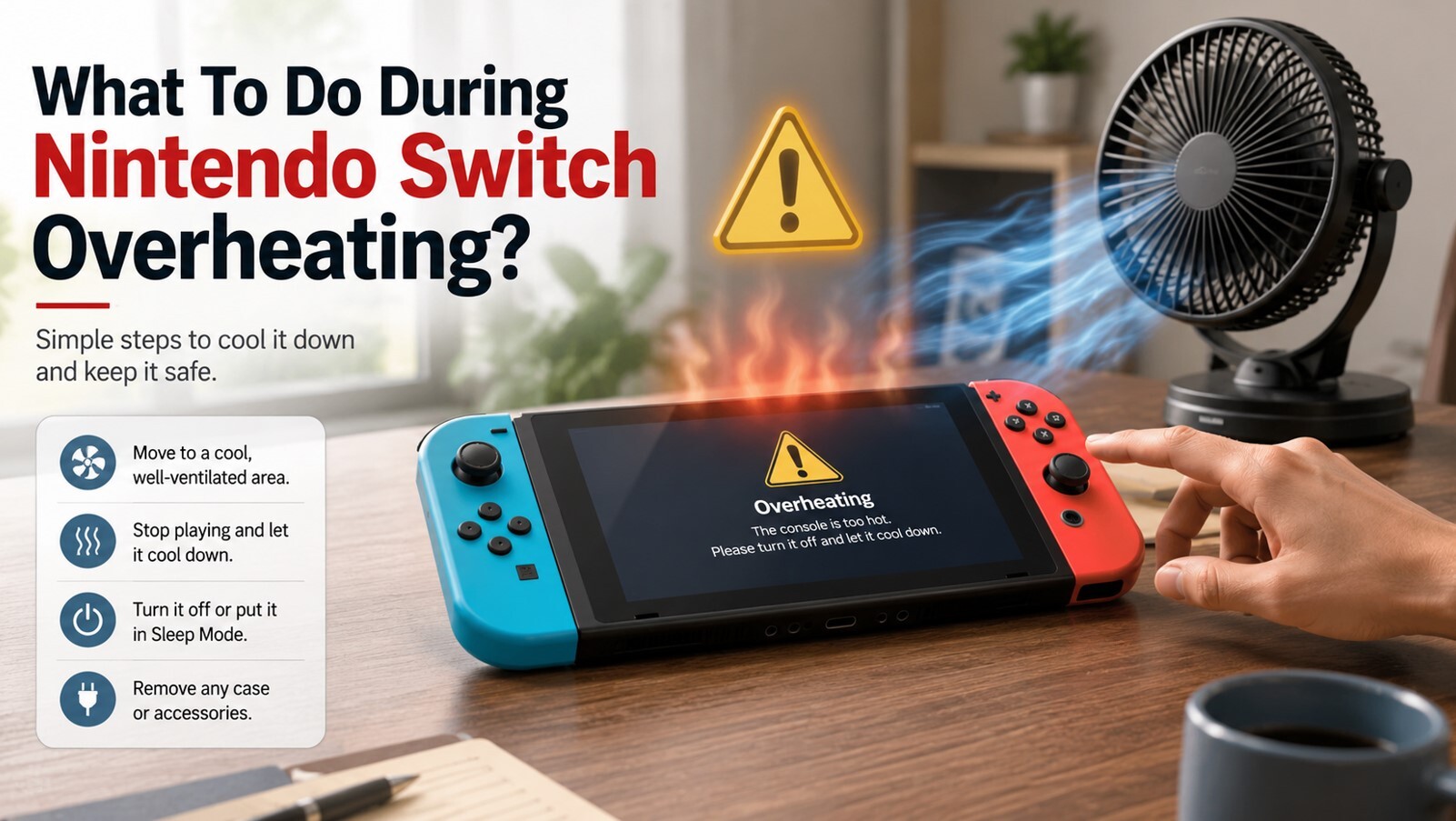
Switch Overheating: Everything You Need to Know Before It Kills Your Console
Picture this. You’re 40 minutes into a Tears of the Kingdom session, deep in Hyrule, and suddenly your Switch throttles to a crawl. The fan is screaming. Then – nothing. Sleep mode. The game’s gone, your progress might be toast, and your console feels like it just came out of a microwave. Frustrating? Absolutely. Avoidable? Most of the time, yes. Switch overheating is one of the most talked-about hardware annoyances in the Nintendo community, and honestly, it makes sense.
You’re packing some serious processing muscle into a tablet that fits in your backpack. Physics doesn’t care about your gaming session. Heat happens. But there’s a big difference between a console running warm and one that’s genuinely overheating – and knowing that difference might save your hardware.
Why Does the Switch Get So Hot in the First Place?
Before jumping to fixes, it helps to understand what’s actually going on inside that little slab of Nintendo magic. The Switch uses a custom Nvidia Tegra X1 chip. When that chip is under full load – think docked mode, demanding games, high frame rates – it produces heat. A lot of it. The console has a fan and a small heatsink to manage that heat, but the system has real physical limits.
Nintendo itself has stated that the recommended operating temperature for the Switch is between 5°C and 35°C (40°F to 95°F). Push past that ambient threshold and things start going sideways fast. The internals hit temperatures that the tiny fan can’t compensate for, and the system’s built-in thermal protection kicks in.
Here’s what typically pushes a Switch past its limits:
- Blocked vents – The intake and exhaust ports clog with dust and lint over time, restricting the airflow the console desperately needs.
- Poor placement in docked mode – Shoving the dock inside a cabinet, on carpet, or anywhere without room to breathe is a classic mistake.
- Hot environments – Playing in a warm room, near a window with direct sunlight, or during summer heat waves all raise ambient temps.
- Long charging sessions while gaming – Running the battery and the CPU simultaneously generates extra heat that stacks up over time.
- Aging thermal paste – On older units, the thermal compound between the chip and heatsink dries out and loses its efficiency.
- A struggling or failing fan – If the fan isn’t spinning at the right speed, or makes grinding sounds, it’s not doing its job.
Docked mode deserves a special mention here. When the Switch is sitting in its dock, it runs at higher clock speeds – the GPU and CPU both push harder to drive the TV output. More power equals more heat, and the dock itself has no fan to help (the original dock design, anyway). So you’re asking the console’s single small fan to handle a bigger thermal load, often in a confined space. No wonder it runs hot.
How to Tell Your Switch Is Actually Overheating (Not Just Warm)?
Every Switch runs warm. That’s normal. A slightly warm back panel during a gaming session is nothing to panic about. Overheating is a different beast entirely.
The clearest sign is the on-screen temperature warning – Nintendo built in a message that pops up and forces the console into sleep mode when internal temps get too high. If you’ve seen that message, your Switch wasn’t just running warm. It was genuinely too hot.
Other warning signs worth watching:
- The fan suddenly sounds like a jet engine spinning up.
- The console drops frame rates or stutters noticeably mid-session.
- Games crash or close unexpectedly without a clear reason.
- The back of the console – especially the right side near the exhaust vent – feels uncomfortably hot to the touch.
- The system randomly enters sleep mode without input.
That last one is actually a protection feature. Nintendo’s support documentation confirms the Switch will automatically go to sleep when it detects dangerous heat levels, specifically to prevent internal damage. It’s annoying as anything mid-session, but it’s the console looking out for its own longevity.
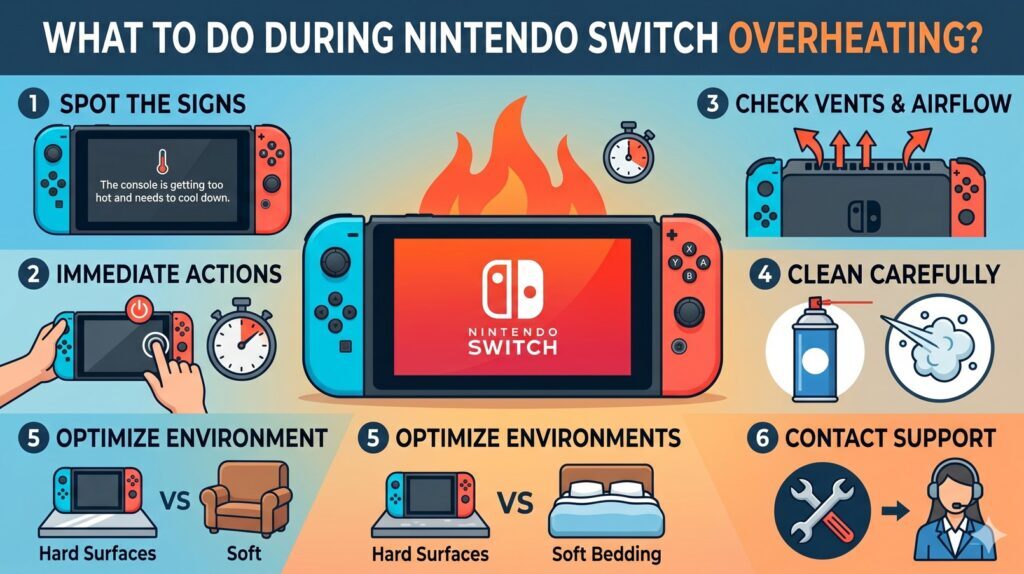
The Quick Fixes That Actually Work for Switch Overheating
Good news: most overheating issues are fixable without cracking the console open or sending it in for repair.
Give the Vents Some Breathing Room Right Now
This sounds almost insultingly simple, but it fixes a huge percentage of overheating complaints. The Switch vents hot air through specific exhaust ports – block those and you’ve essentially turned your console into a sealed box that bakes itself alive.
In handheld mode, the intake vent runs along the top edge of the console, just above the screen. Covering it with your fingers – which is weirdly easy to do depending on how you hold it – raises temps fast. In docked mode, the dock’s top vent needs at least 4-6 inches of open space above it. No cabinets. No bookshelves. No media center enclosures.
Move the dock somewhere open. A TV stand with good clearance, out in the open, away from walls. It sounds almost too straightforward, but the difference in temperatures is real.
Clean the Vents With Compressed Air
Dust is the silent killer of electronics. Over months and years, it builds up inside the Switch’s vents and fan blades, reducing airflow bit by bit. You might not even notice the gradual performance drop until the system starts throwing heat warnings at you.
A can of compressed air – around $5-10 at any hardware store or Amazon – is your best friend here. Hold the can upright, keep the nozzle a few centimeters from the vents, and blast short bursts of air through the intake and exhaust ports. Don’t use a vacuum cleaner; the static electricity it generates is a real risk to delicate components inside.
Do this every few months if you’re a regular player. Think of it like changing the air filter in a car.
Restart the Console and Check for Background Processes
Sometimes the Switch’s software just gets stuck. A process runs in the background, hogging CPU cycles, generating heat without any obvious reason. A full restart – not just sleep mode, but a proper power cycle – clears all that out. Hold the power button, select “Power Options,” and choose “Restart.”
It’s also worth checking if you have downloads or updates running in the background. The Switch downloads system updates and game patches automatically, and doing so while you’re gaming adds thermal load on top of the gameplay demands. Let big downloads finish before jumping into a session.
Move to a Cooler Environment
This one’s underrated. Playing in a room that’s already pushing 30°C (86°F) – say, during summer without AC – means the Switch is trying to dump heat into air that’s already warm. The thermal delta between the console’s internal temperature and the room air is what drives cooling efficiency. Shrink that gap and cooling becomes less effective.
A room with decent air conditioning or even a desk fan aimed near the dock makes a measurable difference. Nintendo recommends ambient temps no higher than 35°C (95°F), but honestly, if you’re aiming for long sessions without issues, keeping the room under 25°C is smarter.
Nintendo Switch Models and Their Heat Behavior
Not all Switches run the same way thermally.
| Model | Chip | Thermal Profile | Known Issues |
|---|---|---|---|
| Nintendo Switch (2017, original) | Tegra X1 (20nm) | Warmest of the trio | Fan noise, dock vent placement |
| Nintendo Switch Lite | Tegra X1 revised | Runs cooler (no dock mode) | Handheld play posture blocking vents |
| Nintendo Switch OLED | Tegra X1+ (revised) | Similar to Lite, slightly warmer screen | OLED panel adds marginal heat |
| Nintendo Switch 2 | Custom Nvidia chip | More powerful, more heat potential | Docked 4K sessions, Ethernet dock stress |
The original 2017 Switch is built on the older 20nm manufacturing process, which is less power-efficient and runs hotter than the revised models. If you’ve got a launch-era Switch and it runs warmer than a friend’s newer unit, that’s not your imagination – it’s just physics.
The Switch 2, which launched in 2025, brings significantly more processing power and has seen its own share of overheating reports, particularly in docked mode during graphically demanding sessions. Nintendo Japan actually issued a public warning in summer 2025 urging players to keep the Switch 2 out of extreme heat conditions. The console’s GPU runs at higher clock speeds in dock mode, and the dock’s own internal fan is designed primarily to cool the dock itself – not the console.
Long-Term Prevention: Keeping Your Switch Cool for the Long Haul
Fixes are great. Prevention is better. These habits keep your Switch running cooler over months and years.
Update Your System Software Regularly
This one catches people off guard. System updates often contain firmware improvements that adjust how the Switch manages its fan speed curves and CPU/GPU power states. An outdated system might be running the hardware less efficiently than Nintendo intended. Head to System Settings > System > System Update and make sure you’re current.
Consider a Cooling Accessory for Docked Mode
There’s a whole ecosystem of Switch cooling accessories out there. Some dock replacement shells include better ventilation, and there are standalone USB-powered fans that you can point at the dock during long sessions. Brands like Skull & Co. make Joy-Con grip cases that also help with handheld heat by lifting the console slightly off surfaces. None of these are required, but if you’re doing marathon sessions of heavy games, they’re worth considering.
Don’t Leave It in a Hot Car or in Direct Sunlight
The Switch’s battery is particularly vulnerable to heat. Lithium-ion batteries degrade faster when regularly exposed to high temperatures – leaving your console in a hot car during summer can damage the battery’s capacity permanently, independent of overheating damage to the processor. Keep the console somewhere room temperature when you’re not using it.
Think About Thermal Paste Replacement (For Older Units)
This one’s more involved and involves opening the console, so it’s not for everyone. But if you have a launch-era Switch from 2017 that overheats regularly despite clean vents and good placement, the thermal paste between the Tegra chip and the heatsink may have dried out. Fresh thermal paste can dramatically improve thermal transfer. iFixit has detailed guides for this if you’re comfortable with that level of DIY.
Docked vs. Handheld: Where Switch Overheating Hits Harder
| Factor | Handheld Mode | Docked Mode |
|---|---|---|
| CPU/GPU clock speed | Lower (reduced power draw) | Higher (max performance) |
| Heat generated | Less | More |
| Ventilation challenge | Grip posture blocking top vent | Enclosed dock placement |
| Fan behavior | Moderate speed | Full speed under load |
| Risk level | Lower for casual play | Higher for long sessions |
| Cooling tips | Don’t grip over top vent, take breaks | Open placement, external fan, keep dock uncovered |
Docked mode is clearly where the thermal challenge lives. Higher clock speeds, a fan working at maximum, and often a poorly placed dock create a perfect storm for overheating. If you’re getting consistent heat issues only in docked mode, that’s your first diagnostic clue.
When DIY Fixes Aren’t Enough
Most overheating issues respond to the steps above. But sometimes they don’t, and that’s a signal something hardware-level is going wrong. If your Switch still overheats after cleaning the vents, moving to a cool environment, restarting, and updating the firmware – especially if the fan sounds like it’s grinding or not spinning at all – the cooling hardware itself may be failing.
At that point, the options are:
- Nintendo Support – If the console is under warranty, this is the obvious move. Nintendo’s repair process replaces or refurbishes the unit. Don’t open the console yourself if it’s still under warranty; doing so typically voids it.
- Professional third-party repair – For out-of-warranty consoles, shops that specialize in console repair can replace fans or reapply thermal paste at a reasonable cost.
- DIY repair via iFixit – If you’re technically confident, iFixit has well-documented guides for Switch fan replacement. Replacement fans are available for around $10-15.
Persistent, severe overheating that causes random shutdowns even at idle isn’t normal. Don’t ignore it – long-term exposure to high heat damages the internal components in ways that can eventually become permanent.
FAQ
Is it normal for a Nintendo Switch to feel warm during use?
Yes, completely. The console running warm is expected during gameplay, especially in docked mode. It only becomes a problem when you see warning messages, the console shuts itself down, or temperatures feel genuinely uncomfortable.
What temperature is too hot for a Nintendo Switch?
Nintendo recommends operating the Switch in ambient temperatures between 5°C and 35°C (40°F to 95°F). Internal component temperatures beyond that range trigger the console’s thermal protection and force it into sleep mode.
Why does my Switch overheat only in docked mode?
Docked mode runs the CPU and GPU at higher clock speeds to power the TV output, which generates more heat. The dock itself also provides less airflow than handheld mode. Poor dock placement makes this worse.
Can Switch overheating permanently damage the console?
Yes, if it happens repeatedly over time. Heat degrades internal components – the processor, battery, and memory – gradually. That’s why the console’s built-in sleep mode exists: it’s preventing that kind of long-term damage.
How often should I clean my Switch’s vents?
Every two to three months is a reasonable schedule for regular players. If you game in a dusty environment, or have pets, more frequent cleaning makes sense.
Does the Nintendo Switch OLED overheat more than the original?
Not significantly. The OLED model uses a revised Tegra chip that’s slightly more efficient. The OLED screen does add some marginal heat, but the overall thermal behavior is comparable to the original revised Switch models.
My Switch fan is making a weird grinding noise. Is that overheating-related?
Potentially yes. A grinding or rattling fan may be failing, which means it can’t cool the console properly – leading to overheating. Try cleaning the vents first. If the noise persists, the fan likely needs replacement.
Bottom Line: Don’t Let Your Switch Cook Itself
Switch overheating is annoying, but it’s rarely mysterious. Clean vents, good airflow, a cool room, and a properly placed dock solve most problems. A soft surface under the dock, a dusty console, or a cabinet with no ventilation – these are the usual suspects, and fixing them takes five minutes.
Where things get more serious – grinding fans, persistent shutdowns, years of heavy use – it’s worth going deeper: professional repair, a fan replacement, or fresh thermal paste on an older unit. The console can last for years without thermal issues if you treat it right.
So next time you feel that right side of the Switch getting suspicious hot mid-session, you know exactly what to do. Take a break, give it some air, and sort out the root cause before it becomes a bigger problem.
Support our team by sharing this post across your social media platforms and bookmarking it so you can easily stay updated with our latest work. Every share and saved bookmark genuinely helps us grow our reach and keep the momentum going strong. If you’re interested in creative or commercial collaboration, feel free to reach out directly to the YaninaGames team.