Learn How to Use PowerPoint in 2025 – a 101 Guide for Beginners
Are you feeling stuck on your first presentation? Don’t worry – it happens to everyone. Learning how to use PowerPoint is easier than it looks. Once you understand the basics, you’ll be able to build professional-looking slides for game development projects or any educational/business purposes. Let’s break it down step by step in this PowerPoint 101 article made for beginners.
PowerPoint is an application of Microsoft 365 and the most used tool for creating visual slides. It allows you to insert text, images, charts, and videos on your slides. PowerPoint enables you to organize your thoughts, whether you are selling a project or presenting research.
Game devs may use the PowerPoint app and tools for such daily tasks:
- Business or presentations, like explaining storytelling to colleagues.
- Marketing and sales plans while pitching new game projects.
- Lectures or training material to explain to interns how the team works.
- Project reports and portfolios while job-hunting.
- Slideshows for events and team-building tasks.
It is possible to learn how to use PowerPoint properly and speak fluently, and make a good impression.
Introduction to PowerPoint Basics
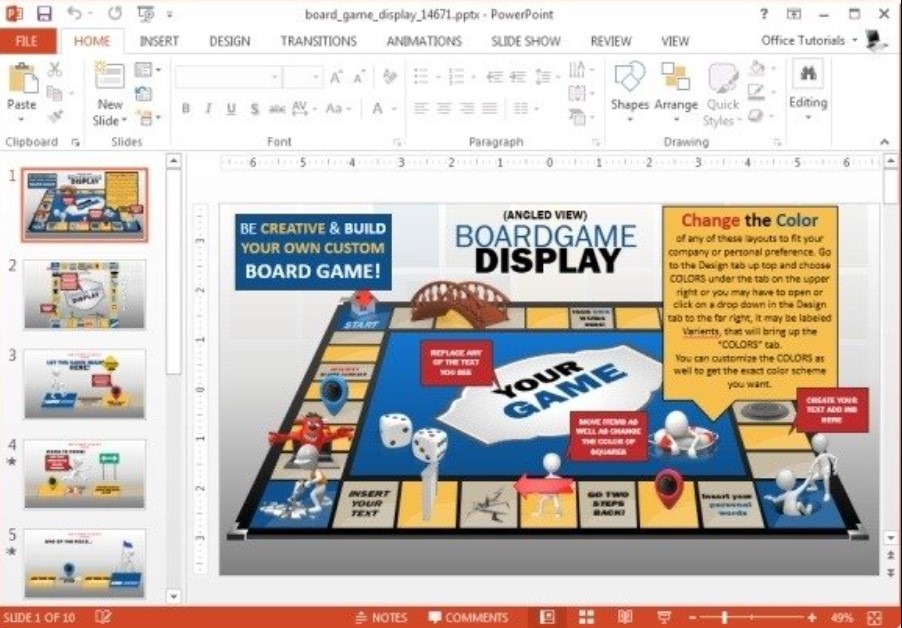
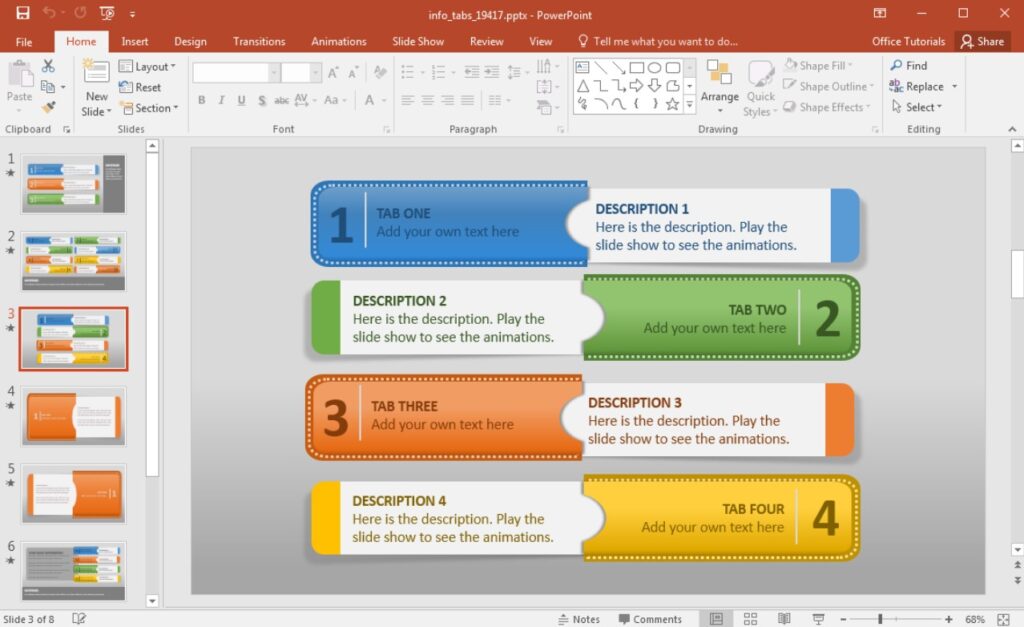
You should know the fundamentals that every novice should know before you begin. When opening PowerPoint, the key window displays a number of sections.
| Section | Description |
| Ribbon Tabs | Tools organized by category (Home, Insert, Design, etc.) |
| Slides Pane | View your slides one by one with the ability to duplicate or delete |
| Slide Canvas | This is the primary space in which you create your current slide |
| Status Bar | Shows slide number and other information |
| Zoom Tool | Allows you to make the slide closer or farther |
These sections form your working space. Being acquainted with them makes you work more quickly.
How To Use PowerPoint To Make a New Presentation For A Video Game Project?
Follow these steps to use PowerPoint for making a new presentation – for example, to demonstrate a video game project:
- Open PowerPoint and choose Blank Presentation.
- Select a theme on the Design tab to choose colors and fonts.
- In the Home tab, click on New Slide to add additional pages.
- Insert text boxes, images, or charts.
- Preview your presentation using the Slide Show button.
If you want something more advanced – like professional formatting or animations – you can always pay for a PowerPoint presentation through a trusted service offered by a professional writing service like EssayService. It’s a practical option if you’re short on time but still need high-quality slides.

PowerPoint 101: Tabs and Uses
The following list shows a brief description of each tab’s functions in PowerPoint:
- Home Tab – insert slides, text formatting, and layout.
- Add Tab – add pictures, shapes, icons, and videos.
- Design Tab – modify color schemes and use predefined themes.
- Transitions Tab – include visual effects between slides.
- Animations Tab – give text or elements a life.
- Slide Show Tab – customize the appearance of your presentation during presentation.
- Review Tab – spellcheck or translate text.
- View Tab – modify layout views or work with notes.
Once you master these tabs, PowerPoint will be user-friendly.
The Essentials of Using PowerPoint Features
Once you have mastered the fundamentals, you can attempt some of the best features of PowerPoint to make your slides look great:
- SmartArt
Excel is good at creating flowcharts, timelines, or org charts. Click on insert, then SmartArt, then a layout, then text.
- Transitions and Animations
Insert fluid transitions between slides or moving objects to capture the interest. Less is more; too many effects may confuse your audience.
- Icons and Shapes
Add professional symbols to make the points more evident. To search the library of Microsoft, go to Insert Icons.
- Remove Background
Do you need to isolate an image? Choose your image, and then choose Picture Format Remove Background. This trick helps your slides to be clean and focused.
- Speaker Notes
Write down the small reminders or important points to be discussed. Click on View Notes and type below your slide.
PowerPoint for “Dummies” – Easy to Use Secrets of Better Slides
Even the most basic slides can be impressive with some arrangement. Some basics can help you improve your presentation:
- Background and text should be contrasting.
- Keep text to a minimum – 6 lines per slide.
- Select readable fonts such as Arial or Calibri.
- Keep images high resolution.
- Have a single visual theme.
Here is a checklist of essential things you need to have on your PowerPoint slides:
- Font is readable on all screens.
- Color palette is consistent.
- Text aligned properly.
- Transitions are not overused.
- Slides saved and backed up.
Such little details distinguish between average slides and professional ones.
Faster Work with Templates in PowerPoint
In case it seems difficult to design something, use PowerPoint with built-in templates. They already possess layouts, fonts, and design elements. All you have to do is insert your text and pictures. The templates are located and used in the following way:
- Go to File → New.
- Find a theme such as Business, Education, or Minimal.
- Choose a design and press Create.
- Substitute the sample with your own.
There are also thousands of free templates on the Internet. Choose one that suits your voice, professional when at work, personal when doing projects.
How to use PowerPoint to Make a Real Presentation:
- Plan your Content. Write your main points down, and then open PowerPoint.
- Choose a Design. Select a clean theme that is relevant to your subject.
- Add Visuals. Data are easier to comprehend with the help of charts, icons, or photos.
- Use Animations Wisely. Simple fades work best.
- Practice Your Talk. Rehearse timing and flow using Slide Show mode.
These steps will help you gain confidence and speed up every time you make a presentation.

Common Mistakes to Avoid When Using PowerPoint
Even experts commit mistakes in making slides. Keep these points in mind when using PowerPoint:
- Do not cram too much text on your slides.
- Do not use a variety of fonts.
- Avoid loud background colors.
- Practice your timing prior to presentation.
- Always make backups of your files.
A good presentation should be clear, without many embellishments. Make things plain and easy to understand.
FAQ
Is PowerPoint free?
It belongs to the paid Microsoft 365 Office package, however, PowerPoint Online is free with a Microsoft account.
How does the difference between PowerPoint and Google Slides work?
The tools of PowerPoint are more advanced, whereas Google Slides is simpler to collaborate with.
What can I do to make my slides professional?
Be consistent in colors, text, and visuals.
Is it possible to record my presentation in PowerPoint?
Yes, access the Record tab and select the option of Record Slide Show.
What is PowerPoint 101?
It is an introductory guide to the functionality of PowerPoint, including all the simple tools, tabs, and tips.
Conclusion
PowerPoint is not only about design but also about communication. It assists you in explaining complicated concepts through visual means, retaining your audience, and expressing your creativity in organized forms. However, practice is the key, whether you are a beginner in learning PowerPoint or need a refresher course. The more you use it, the more intuitive it is.
YaninaGames keeps on posting useful guides for beginner-level game developers. If you find these guides interesting and useful, please share them online. We’d like your feedback in any form. Also, contact us directly if you seek commercial or creative collaboration.